Photograph your veined tiles and lay out the whole wall
TileMatchMaker: photograph the tiles, let it find each tile, fix any outline, then Run: every tile is compared with every other and the wall is laid out for the best overall match, with the arrows on the tile backs respected. Print the sticker sheet and cut list for the install.
Guide revision: 2026-11-15
6-step walkthrough with voiceover, recorded from the same checked steps.
Voiceover: Kokoro text-to-speech (Apache 2.0).
How do I start?
Open TileMatchMaker from the app hub. Try the sample wall first, then Sources.
What do I do next?
- 1
A real wall, solved
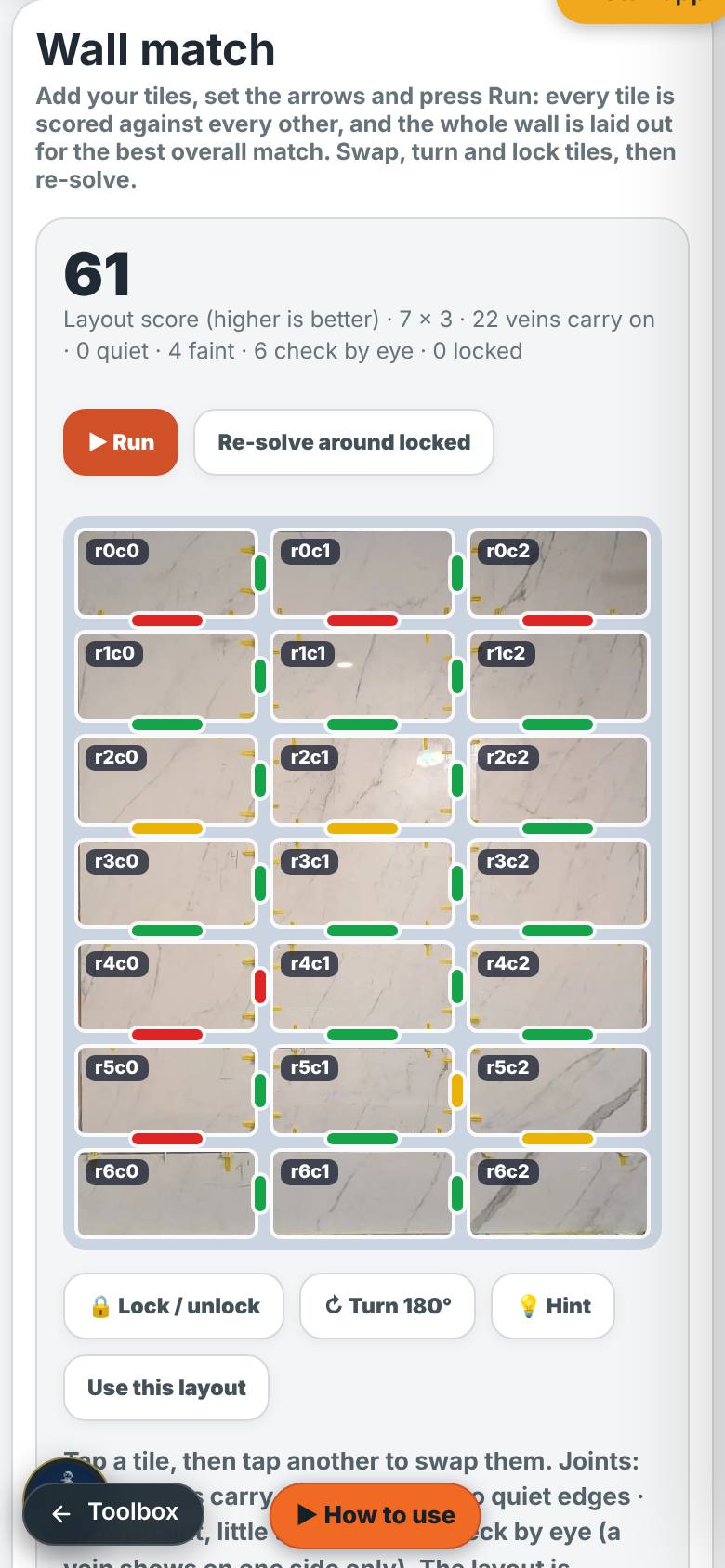
Tap Try it on a real wall.
Twenty-one tiles laid out, joints coloured.
- 2
Find Tiles
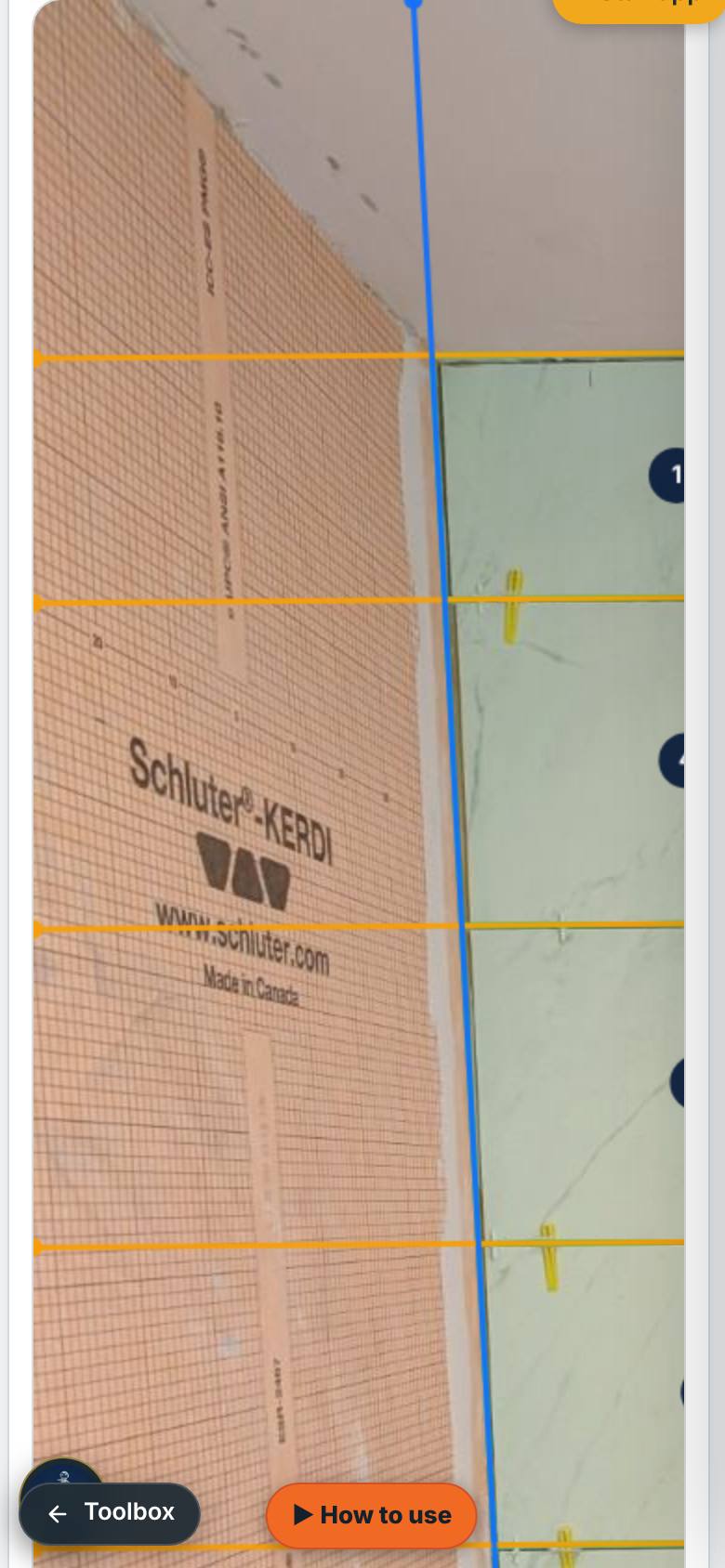
On Sources, add a photo of the tiles, then tap Find Tiles.
Every tile outlined on the photo.
- 3
Fix an outline
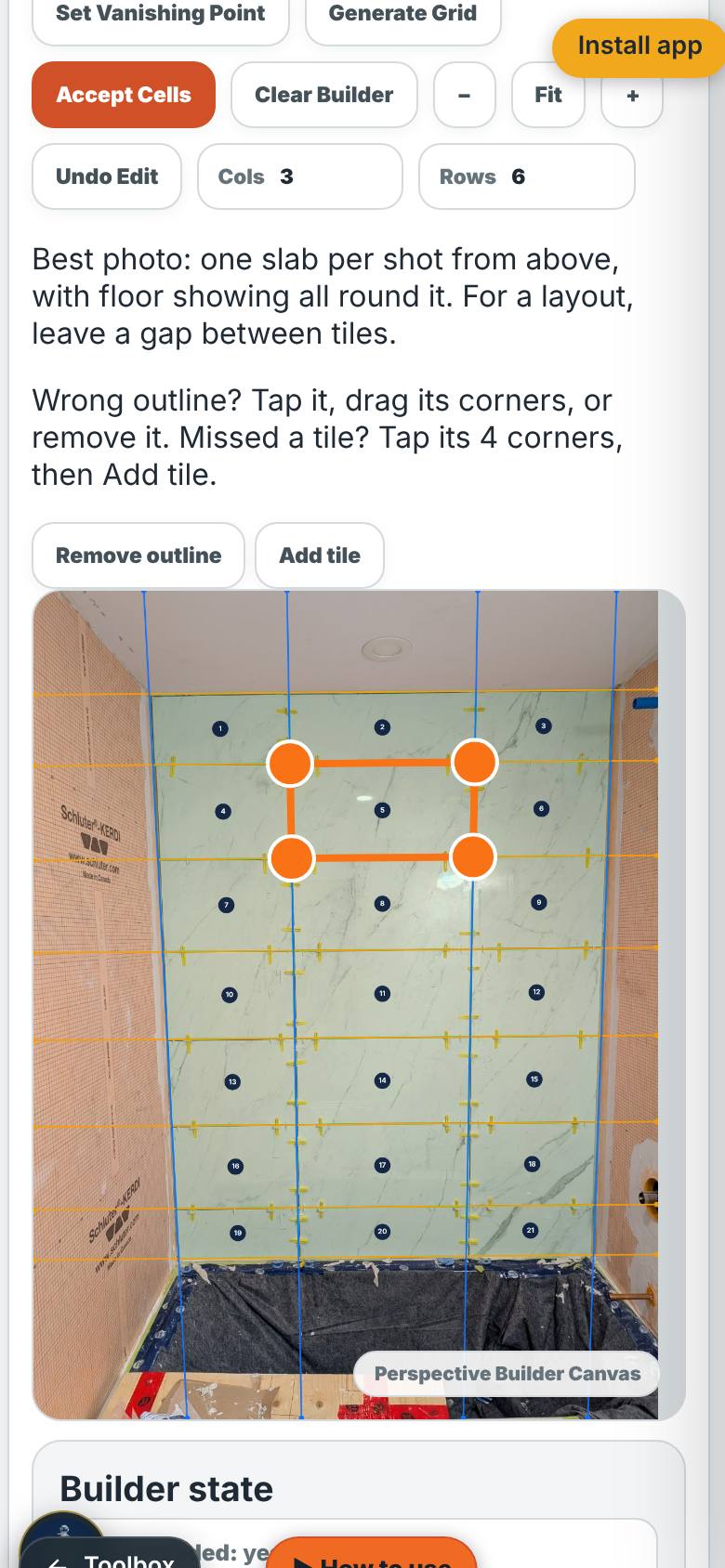
Tap an outline to pick it; drag its corners if it is off.
The picked outline in orange with corner handles.
- 4
Accept Cells
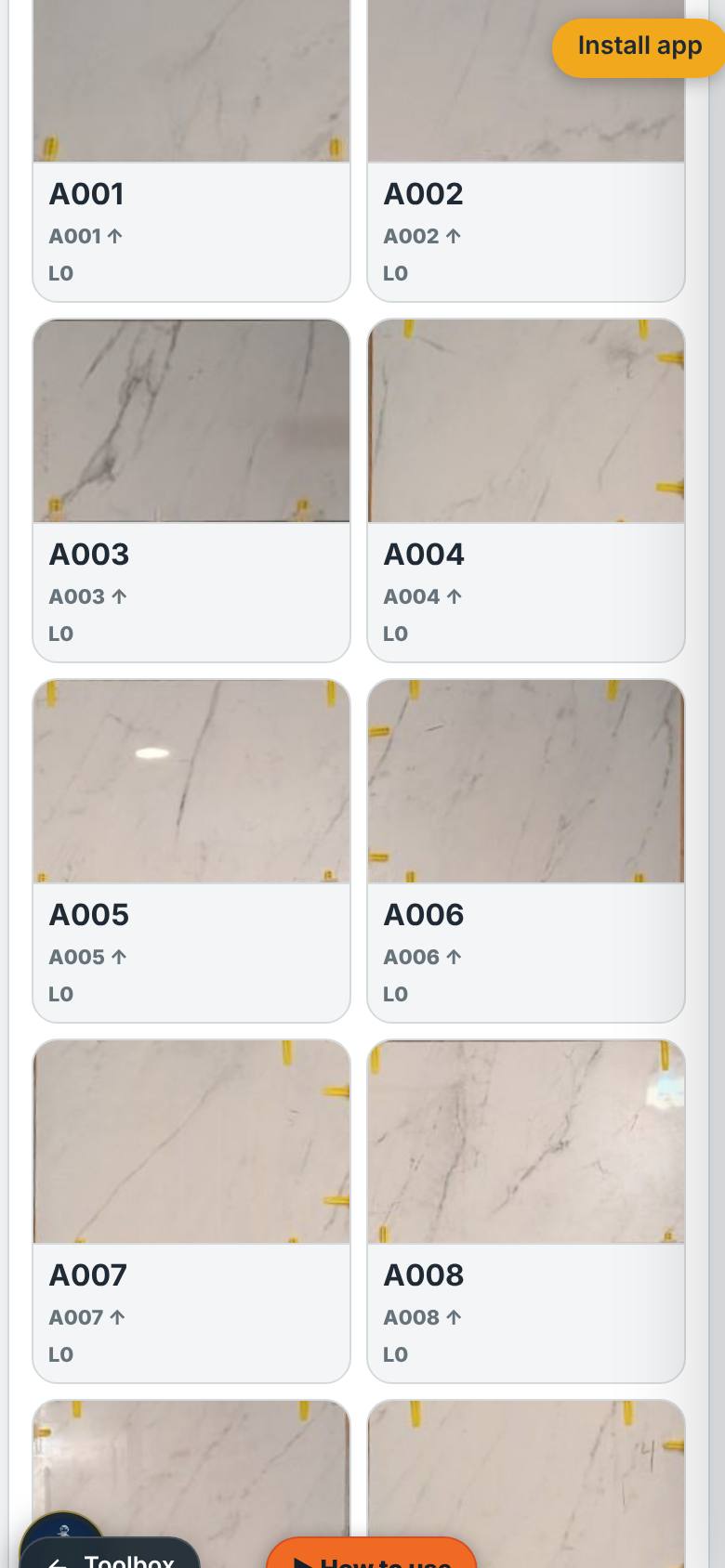
Tap Accept Cells.
Each outline becomes a straightened tile in the inventory.
- 5
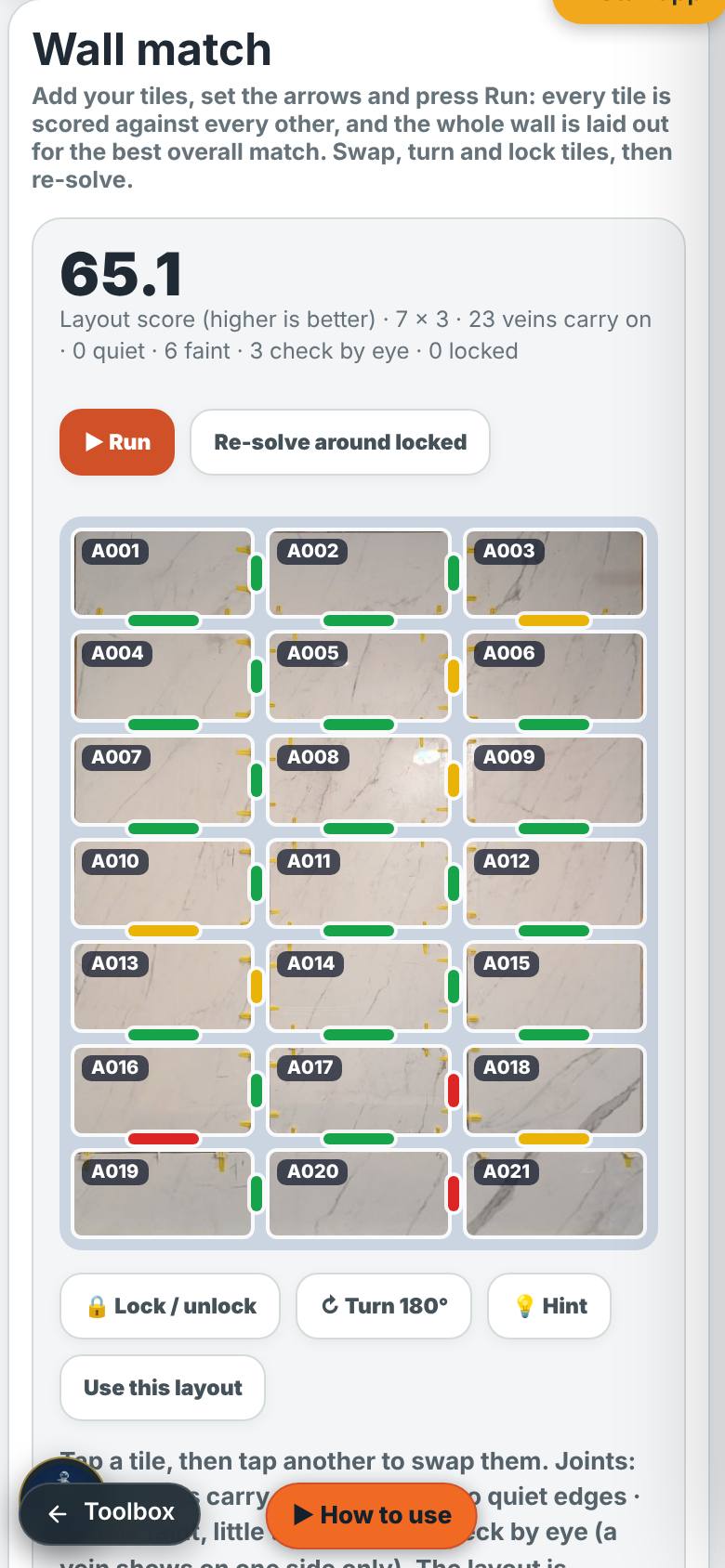
Run
On Wall match, set the arrows, the rows and columns, then tap Run.
The whole wall laid out for the best overall match.
- 6
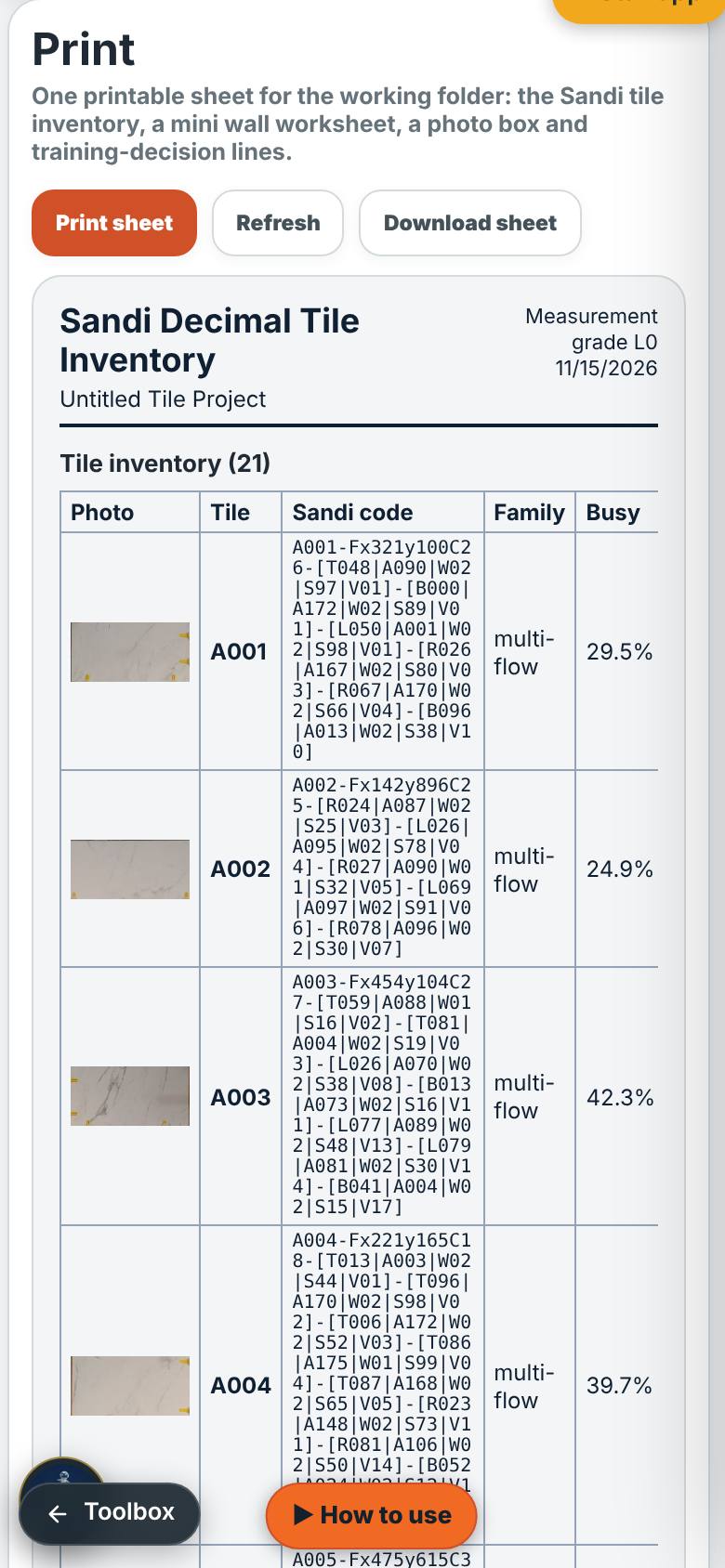
Print
Tap Print.
The sticker sheet and the cut list for the install.
What result should I expect?
Every tile numbered, the wall laid out for the best vein match, and a sticker sheet and cut list to print.
How do I save, share or get help?
Use this layout saves the tiles to your series, so the next box of the same tile is recognised. Print gives the sticker sheet and cut list.
If something goes wrong
- An outline is on the grass or a board. Tap it, then Remove outline.
- A tile was missed. Tap its four corners on the photo, then Add tile.
- The photo is busy (slabs overlapping, dark slabs on asphalt). Tap Find with AI: it outlines each slab (one AI turn, sign-in needed).
Every screenshot here was taken while doing these exact steps on the app's current build (6f9b4f9), on a phone-sized screen, signed out, on 2026-11-15. Steps that need an account are marked. Nothing was submitted or bought.
All How-To guides Return to TileMatchMaker