Make a 3D model fit the platform
Compress in AiArena: drop in any GLB model and it comes out the platform's way, much smaller with the same detail, so it loads quickly on a phone. It runs on your device; nothing is uploaded.
Guide revision: 2026-10-13 · steps checked 2026-10-13 on build 9531cf7
5-step walkthrough with voiceover, recorded from the same checked steps.
Voiceover: Kokoro text-to-speech (Apache 2.0).
How do I start?
Open AiArena, tap Build, then Compress a model. It is part of AiArena Plus.
What do I do next?
- 1
Compress a model
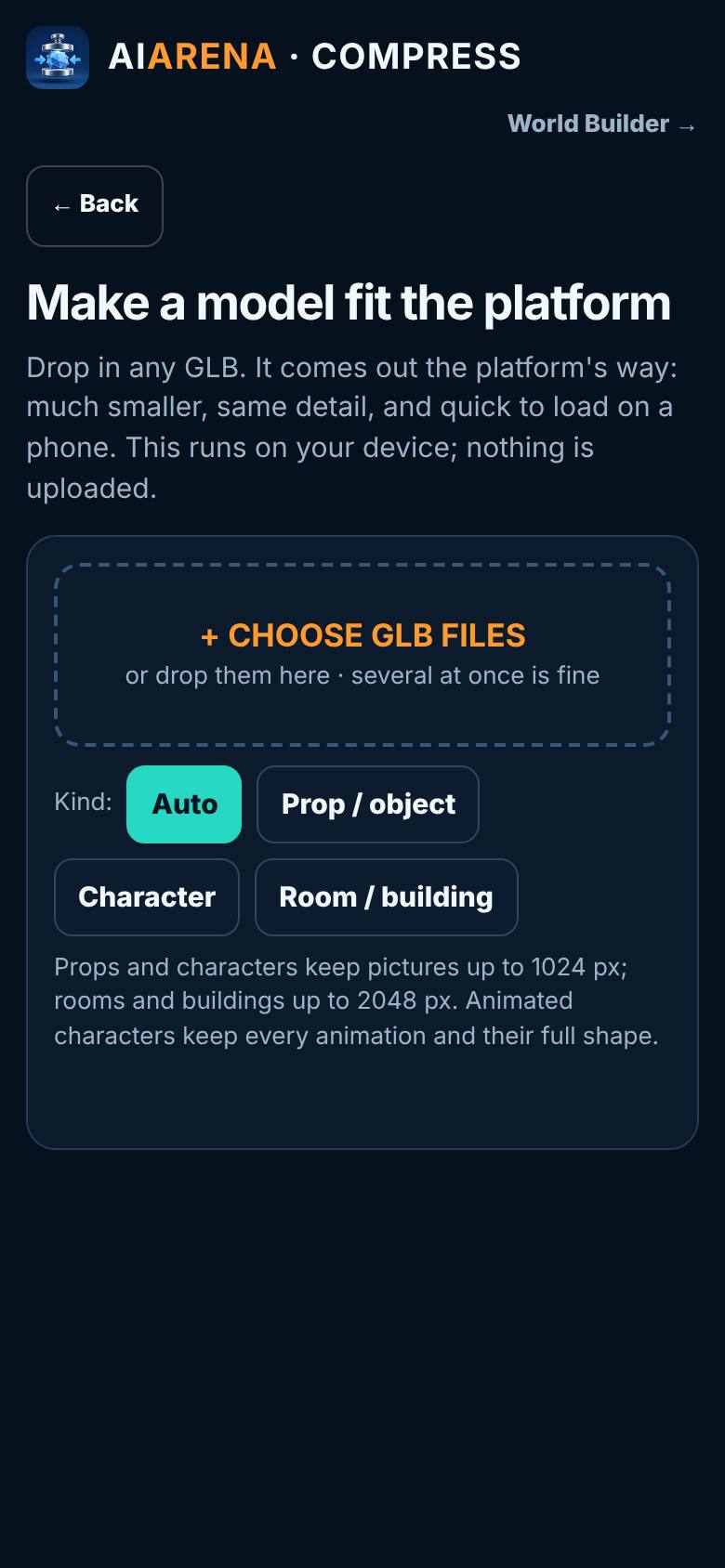
On AiArena, tap Build, then Compress a model.
Choose GLB files, the kinds, Before and After.
- 2
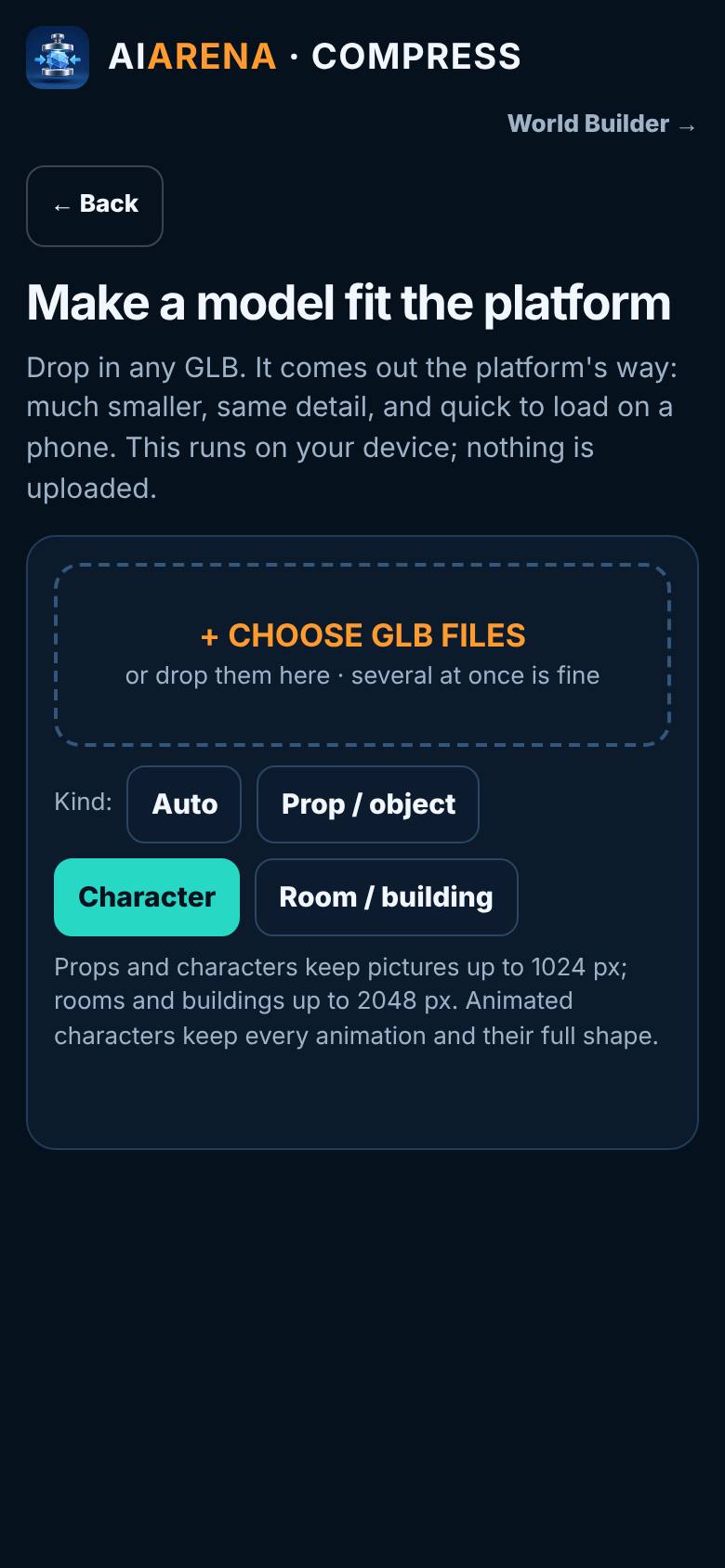
Choose the kind
Tap Character.
Character is selected.
- 3
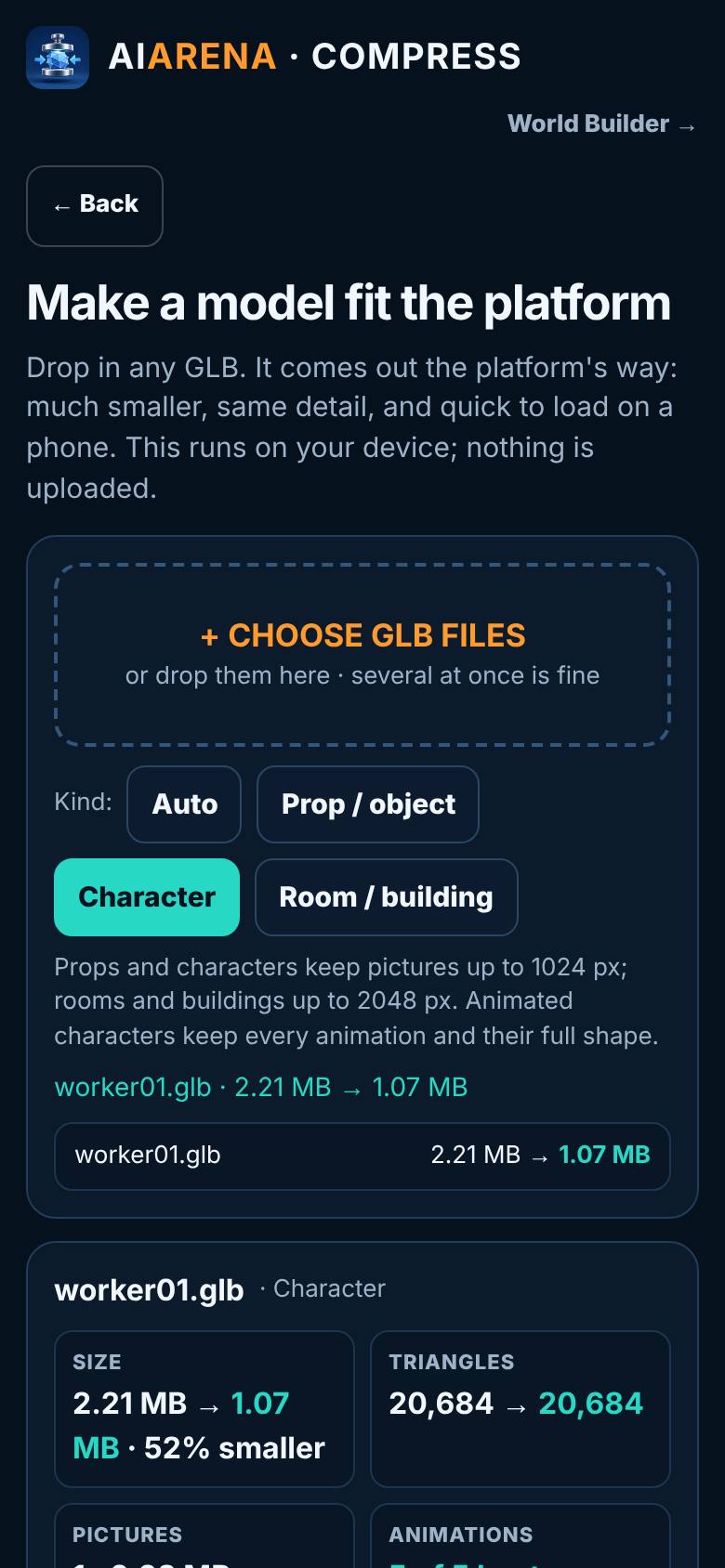
Choose a GLB
Tap Choose GLB files and pick the model.
It starts working through the model.
- 4
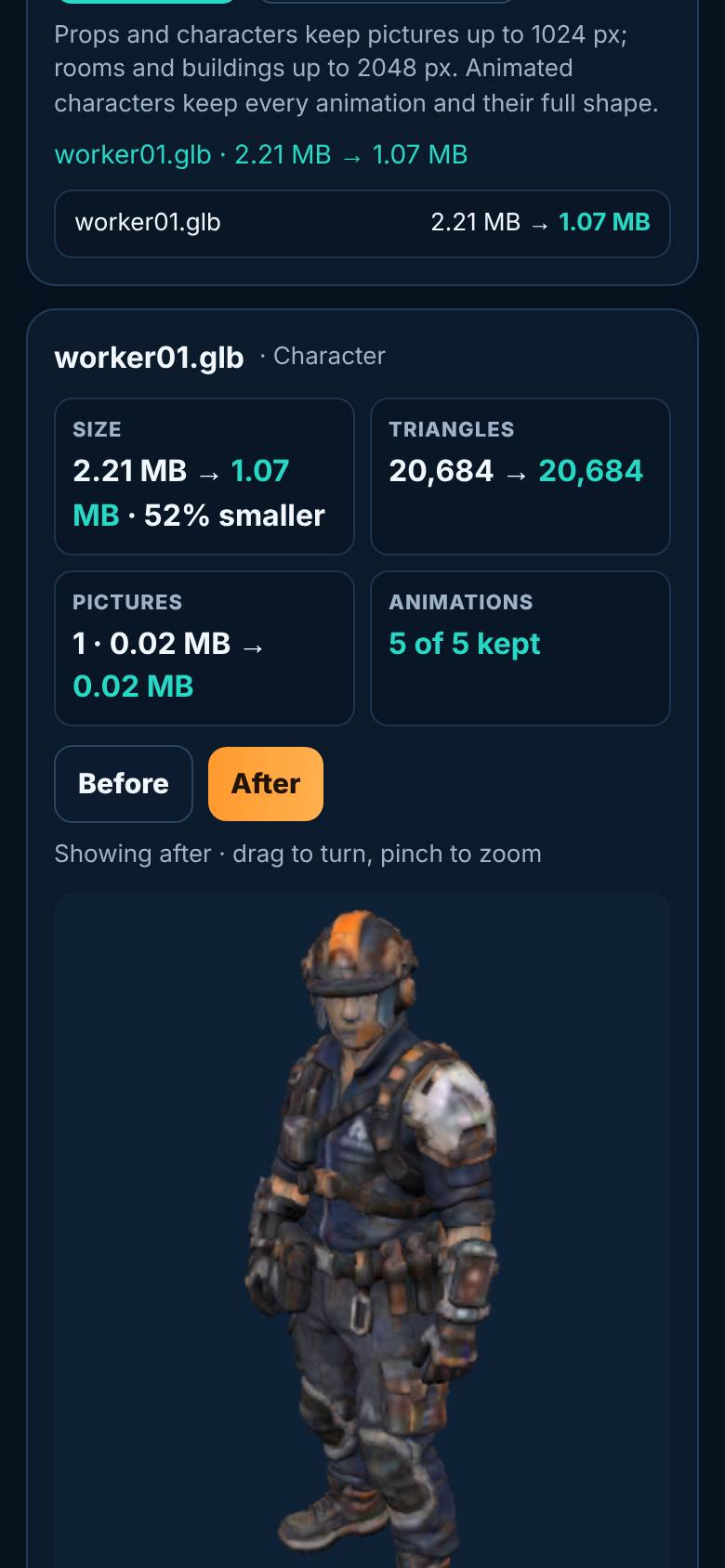
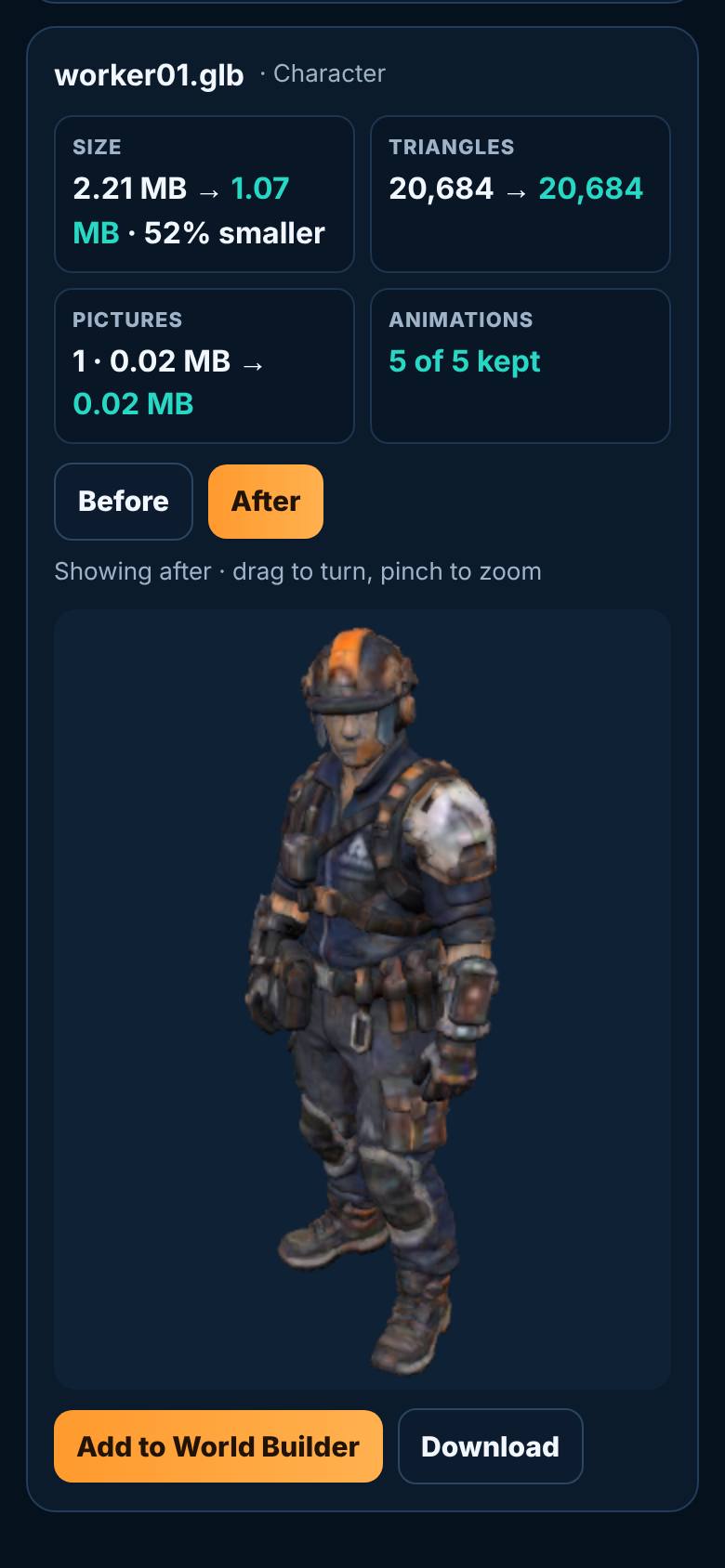
Before and after
Tap Before, then After.
The sizes before and after, and the model.
- 5
Download or add to the builder
Tap Download, or Add to World Builder.
Both buttons under the result.
What result should I expect?
A smaller GLB you can download, or add straight to the World Builder.
How do I save, share or get help?
Nothing is stored online. Download the result or add it to your world.
If something goes wrong
- The model looks different after. Pick the kind yourself: Prop, Character or Room. Characters keep every animation and their full shape; rooms keep bigger pictures.
Every screenshot here was taken while doing these exact steps on the current build (9531cf7), on a phone-sized screen, on 2026-10-13.
All AiArena How-To guides Open AiArena Compress