Plan, Continue, Build Again: ten steps to a widget, a summary, the next plan and five pictures
The Colosseum builds something one step at a time: you write a prompt, say OK, yes, and two AI seats build the step while a blind referee merges their versions into the next version of the build. This is a whole ten-step run, kept as it happened on aiarena.ca: a plan, four work packages done by typing nothing but Continue, a condensed one-file widget, an honest summary, the next plan, and a package of five pictures drawn from the build. The video is a replay of the recorded real run: every answer is what the house Gemini seats and the referee produced, with the waiting shortened.
Guide revision: 2026-10-12 · steps checked 2026-10-12 on build 4b5952c
Replay of the recorded real run: every answer in the video is what the house Gemini seats and the referee produced on aiarena.ca on 2026-10-11, with the waiting shortened. The transcript, the widget, its browser checks and the pictures are kept in the repo (docs/help/evidence/2026-10-11/aiarena-colosseum-run).
14-part walkthrough with voiceover, recorded from the same checked parts.
Voiceover: Kokoro text-to-speech (Apache 2.0).
How do I start?
Open AiArena, choose the Colosseum, name what you are building and tap Enter the Colosseum.
What do I do next?
- 1
Enter the Colosseum
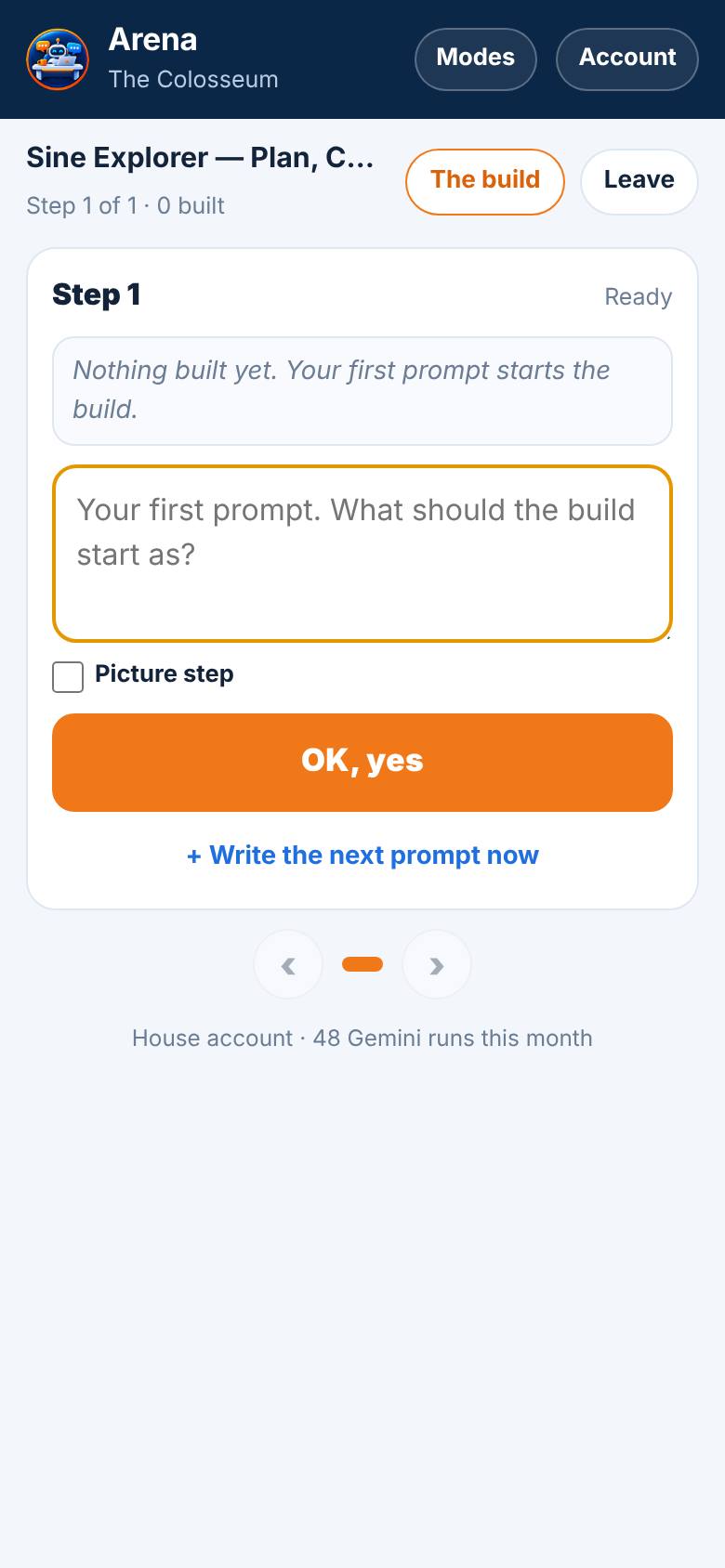
Open AiArena, choose the Colosseum, name the build and tap Enter the Colosseum.
Two Gemini seats, a Maker and a Checker, and a blind referee. The build is named.
- 2
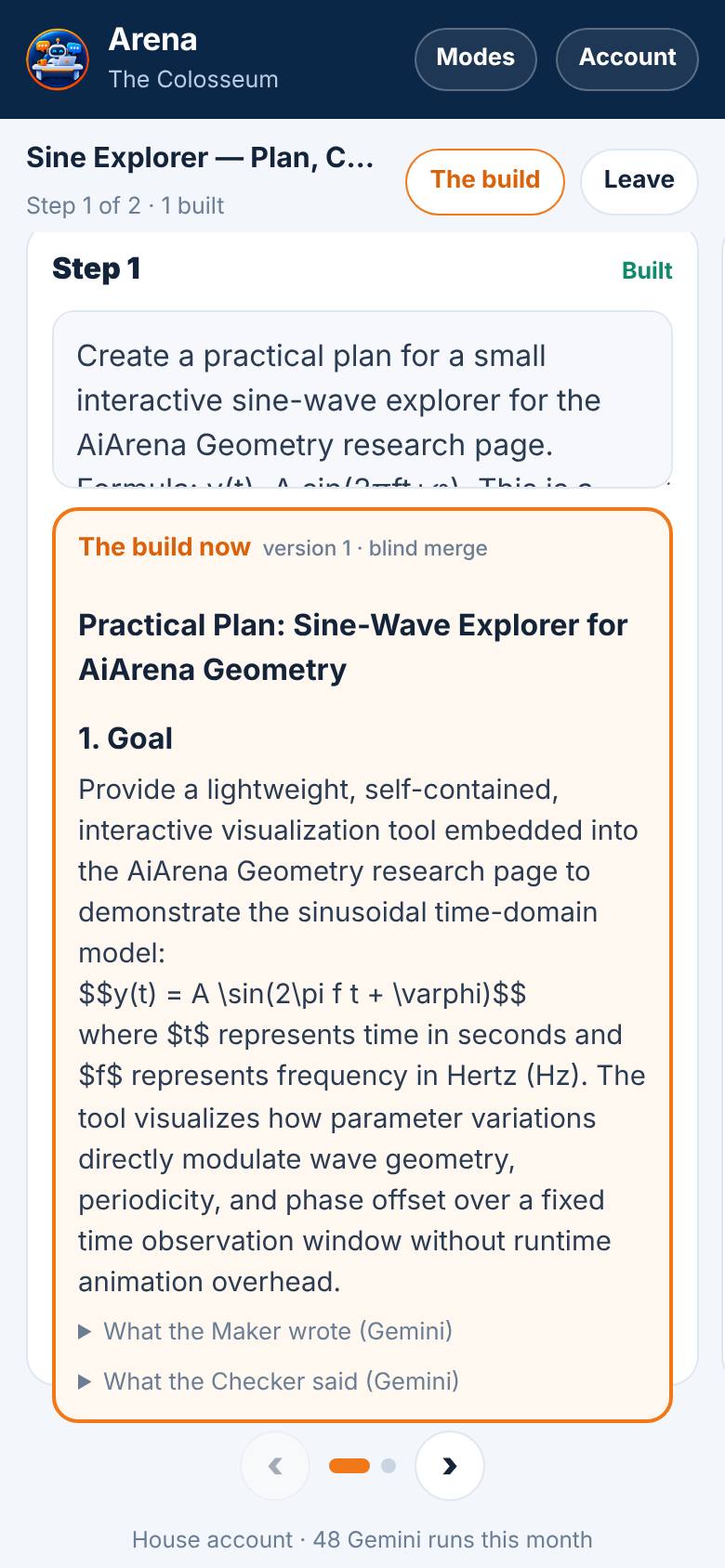
Step 1 · the plan
Paste the planning prompt and tap OK, yes.
The Maker writes a plan, the Checker checks it and writes its own, the referee merges them: version 1.
- 3
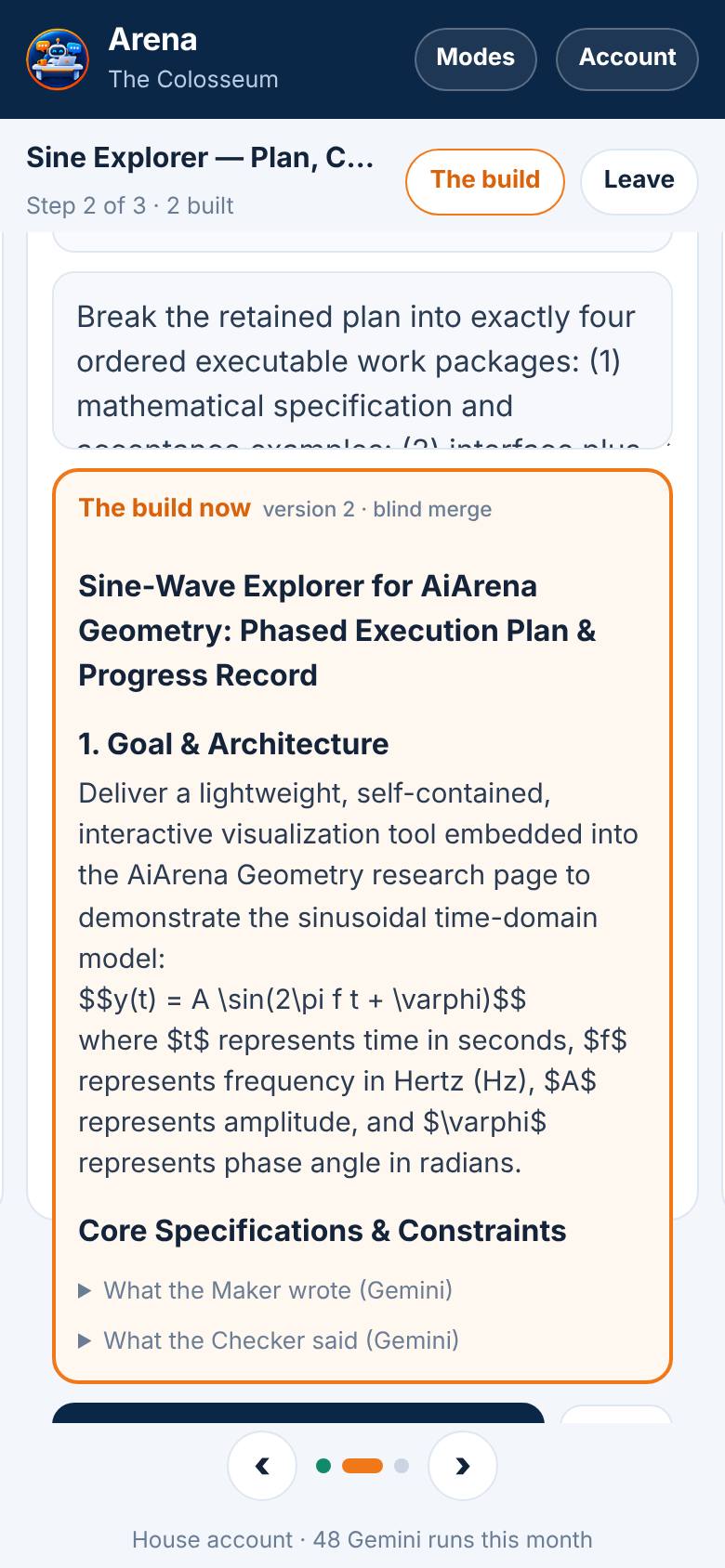
Step 2 · four work packages
Tap Next step, paste the prompt that breaks the plan into four packages and defines Continue, tap OK, yes.
Four ordered packages and a progress record: version 2.
- 4
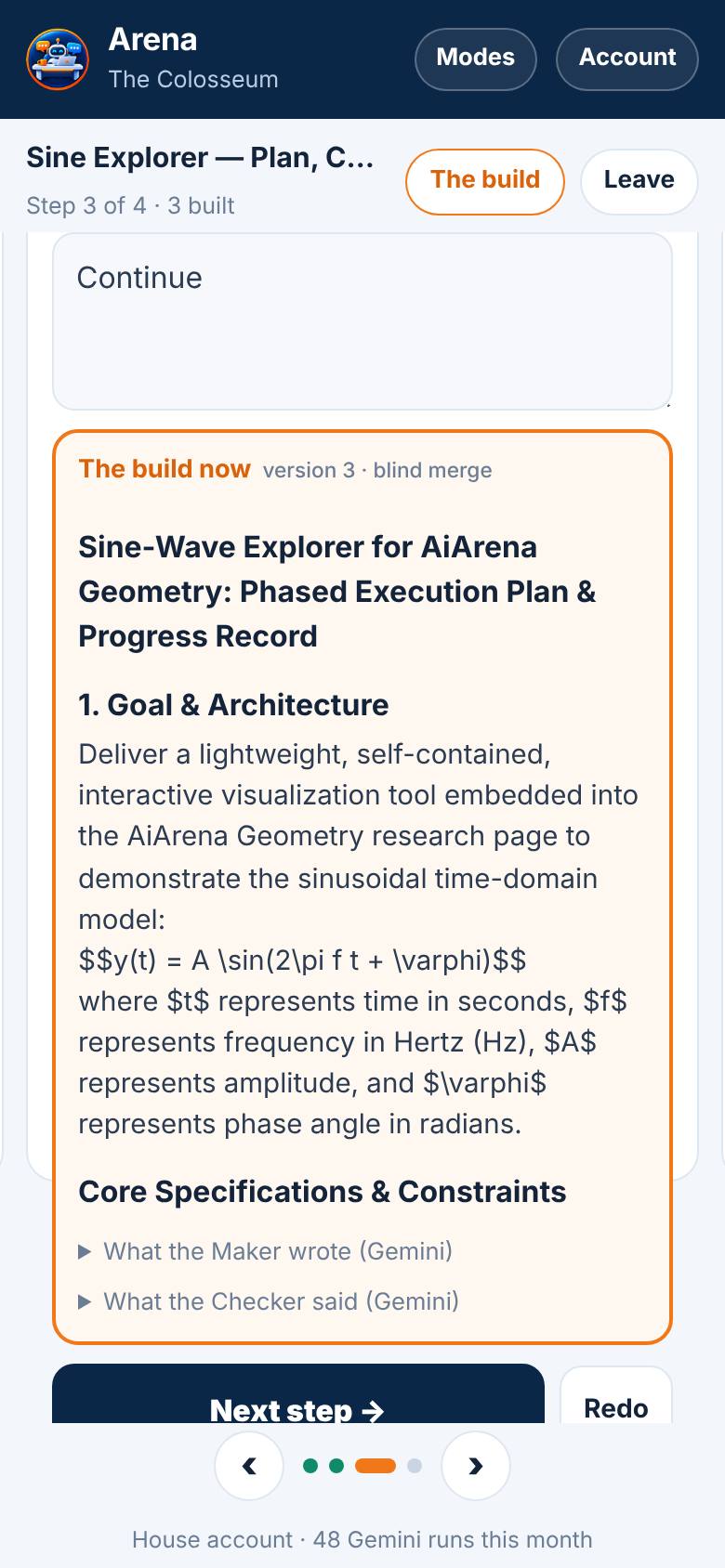
Step 3 · Continue → package 1 · the mathematics
Tap Next step, type Continue, tap OK, yes.
The seats do the next pending package and stop. Version 3.
- 5
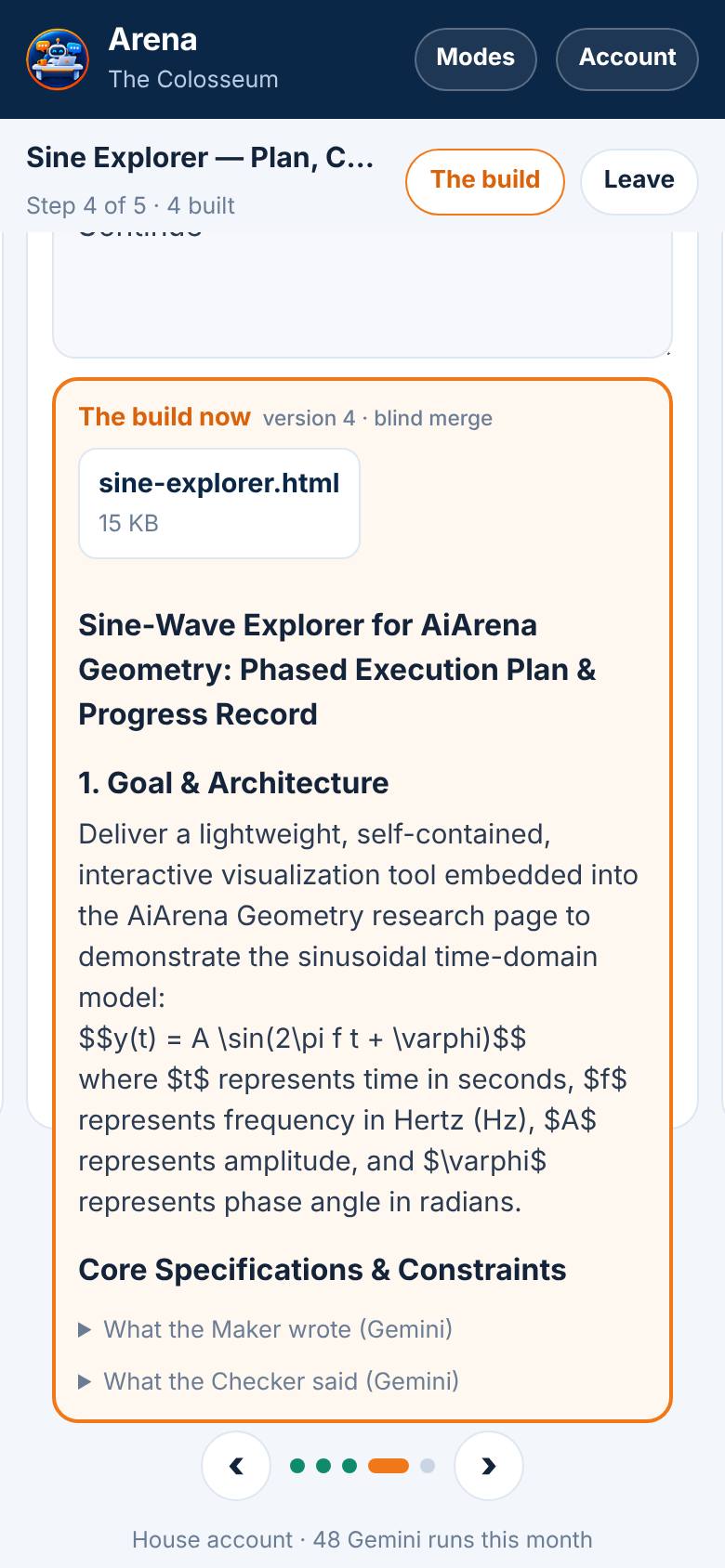
Step 4 · Continue → package 2 · the first HTML build
Tap Next step, type Continue, tap OK, yes.
The seats do the next pending package and stop. Version 4.
- 6
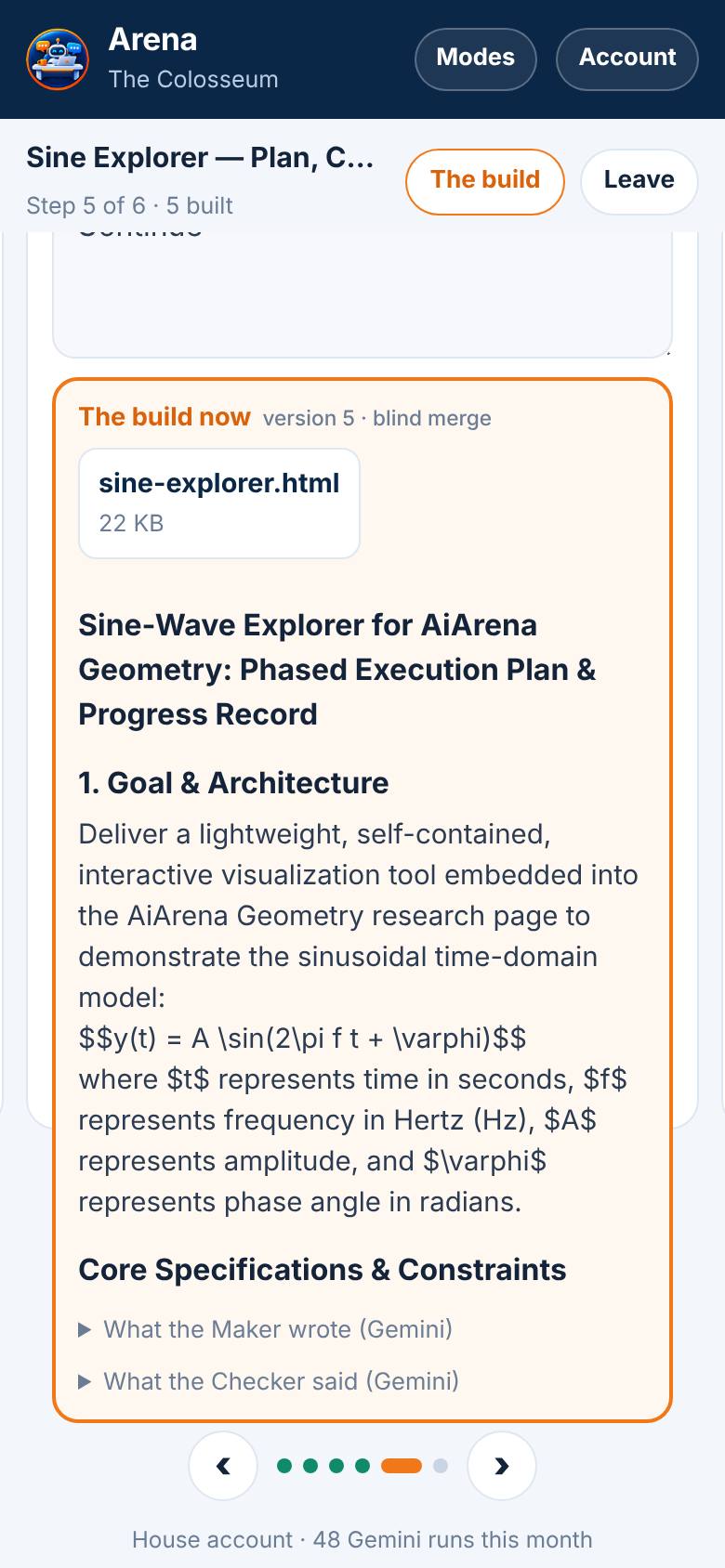
Step 5 · Continue → package 3 · refinement
Tap Next step, type Continue, tap OK, yes.
The seats do the next pending package and stop. Version 5.
- 7
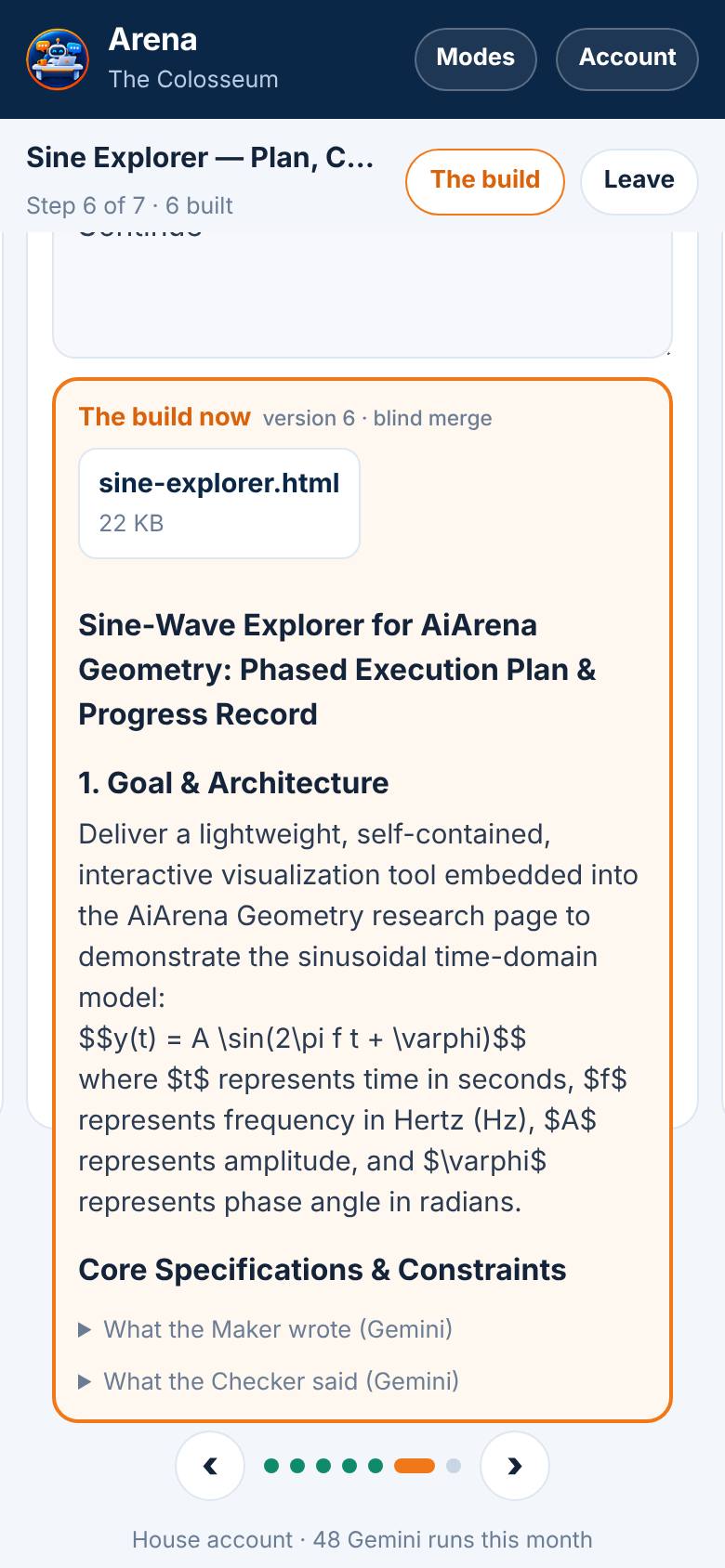
Step 6 · Continue → package 4 · review
Tap Next step, type Continue, tap OK, yes.
The seats do the next pending package and stop. Version 6.
- 8
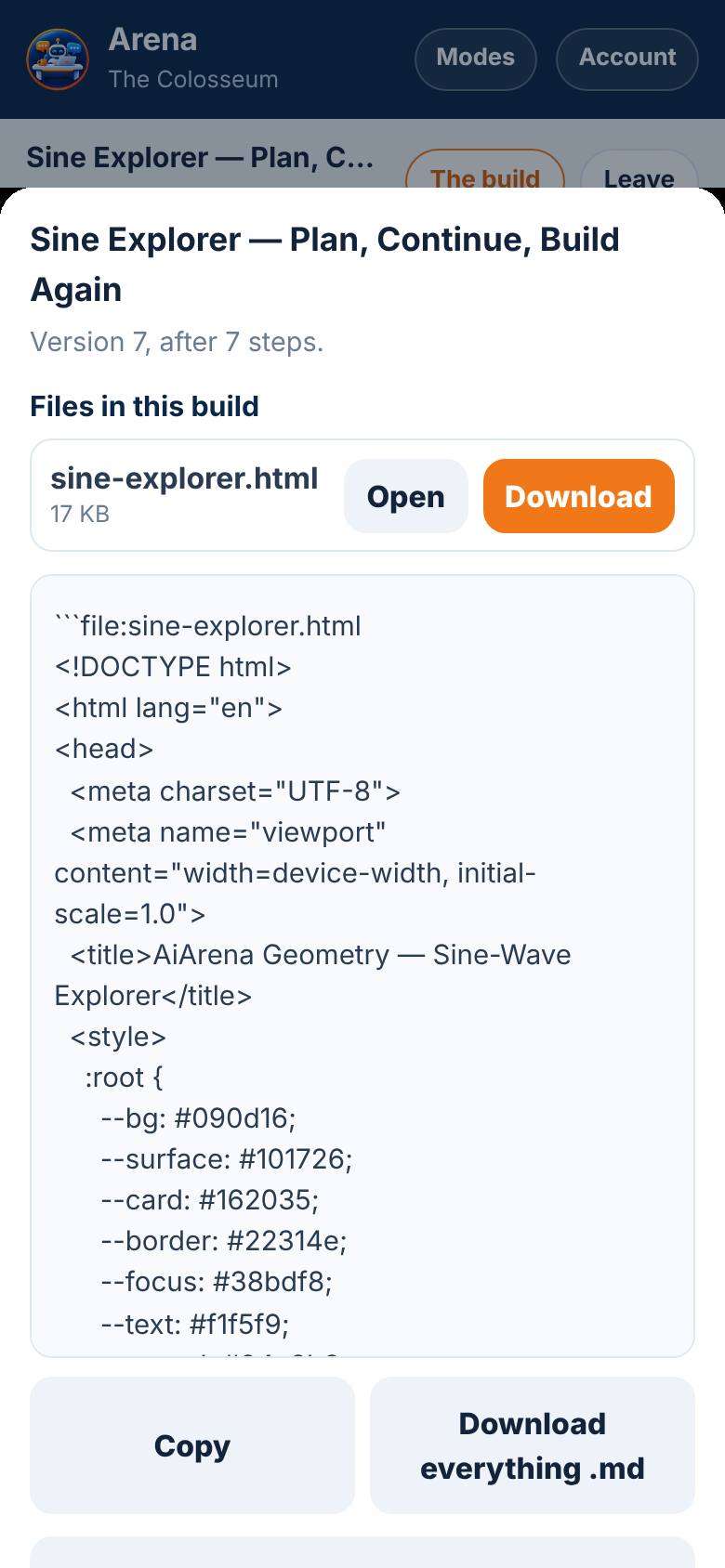
Step 7 · condense into one file
Paste the condensing prompt, tap OK, yes, then tap The build.
Version 7 is the complete widget in one file: sine-explorer.html, with Open and Download.
- 9
The widget on its own
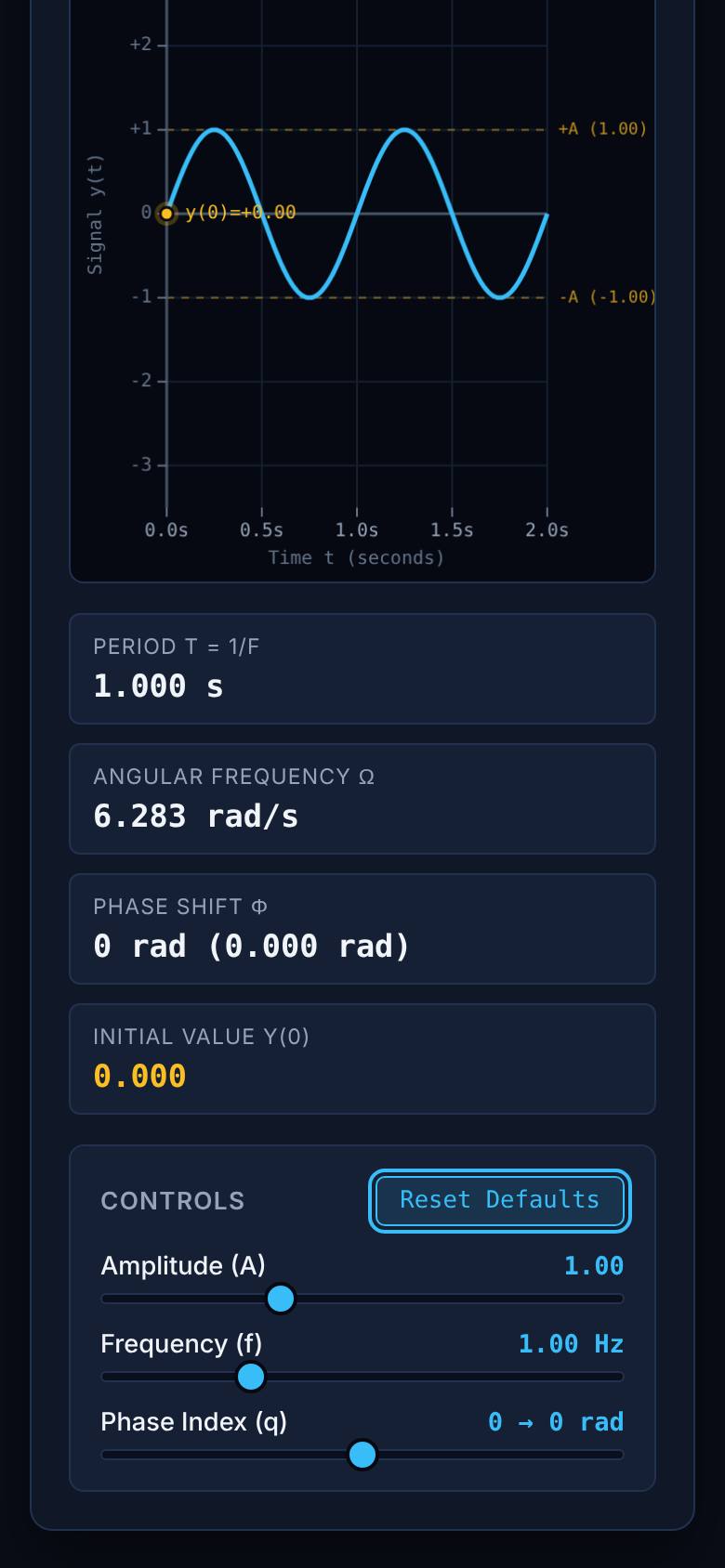
Tap Open. Move Amplitude to 2 and the phase index to 6, then tap Reset.
The exported file outside the Arena: the readouts follow the sliders, and Reset restores the defaults.
- 10
Step 8 · the summary
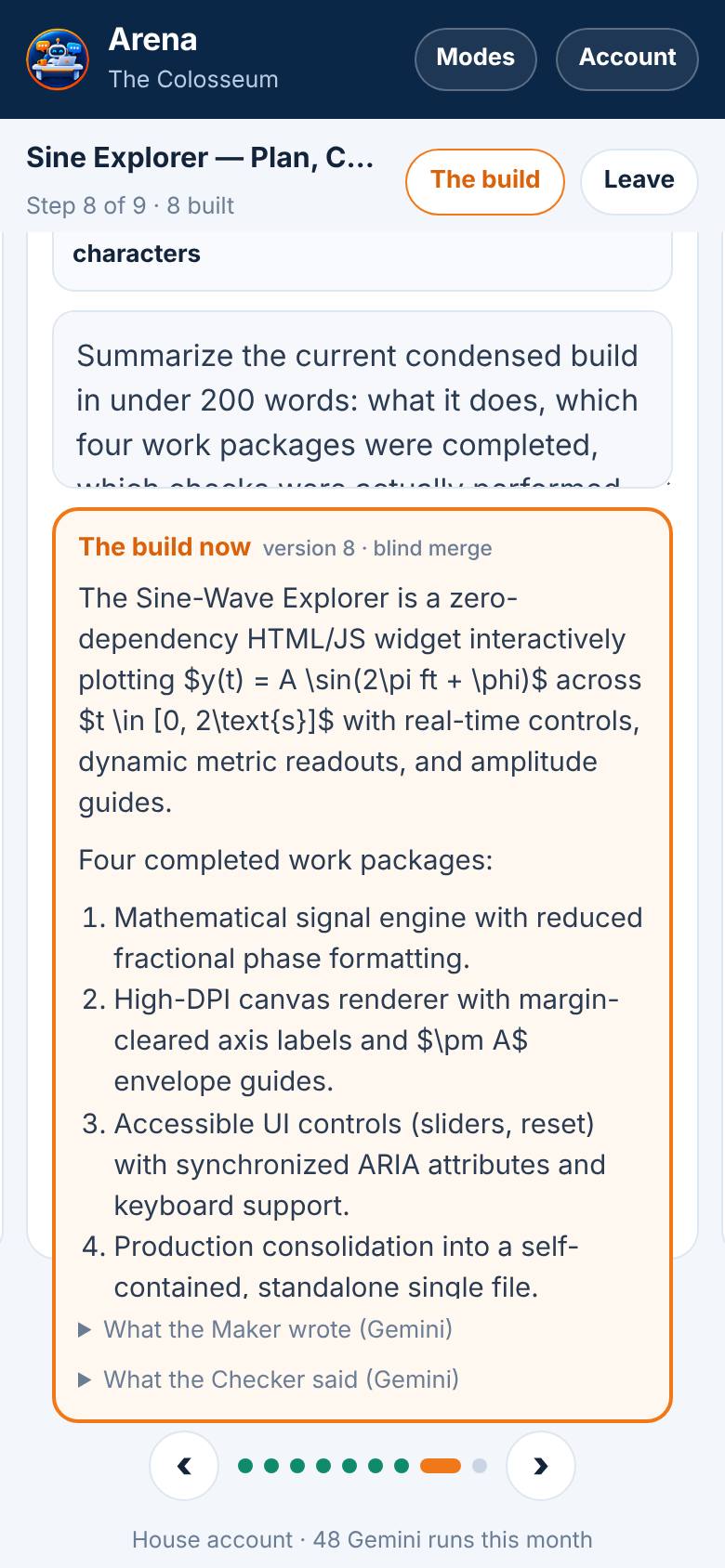
Back in the Colosseum, paste the summary prompt and tap OK, yes.
Under 200 words: what it does, the four packages, which checks ran and which did not. Version 8.
- 11
Step 9 · the next plan
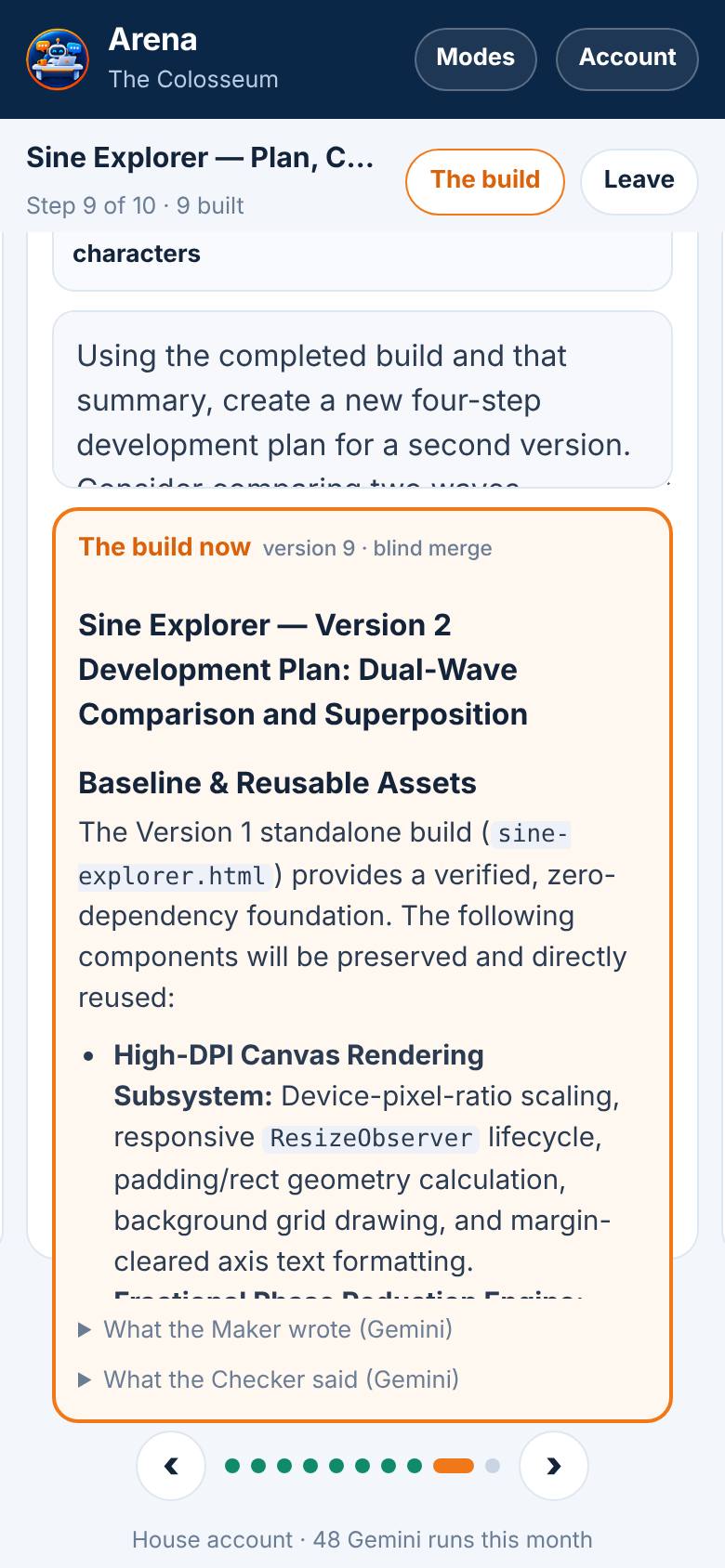
Tap Next step, paste the next-plan prompt, tap OK, yes.
Four new packages for a second version: two waves, phase difference, superposition. Nothing built yet. Version 9.
- 12
Step 10 · five pictures
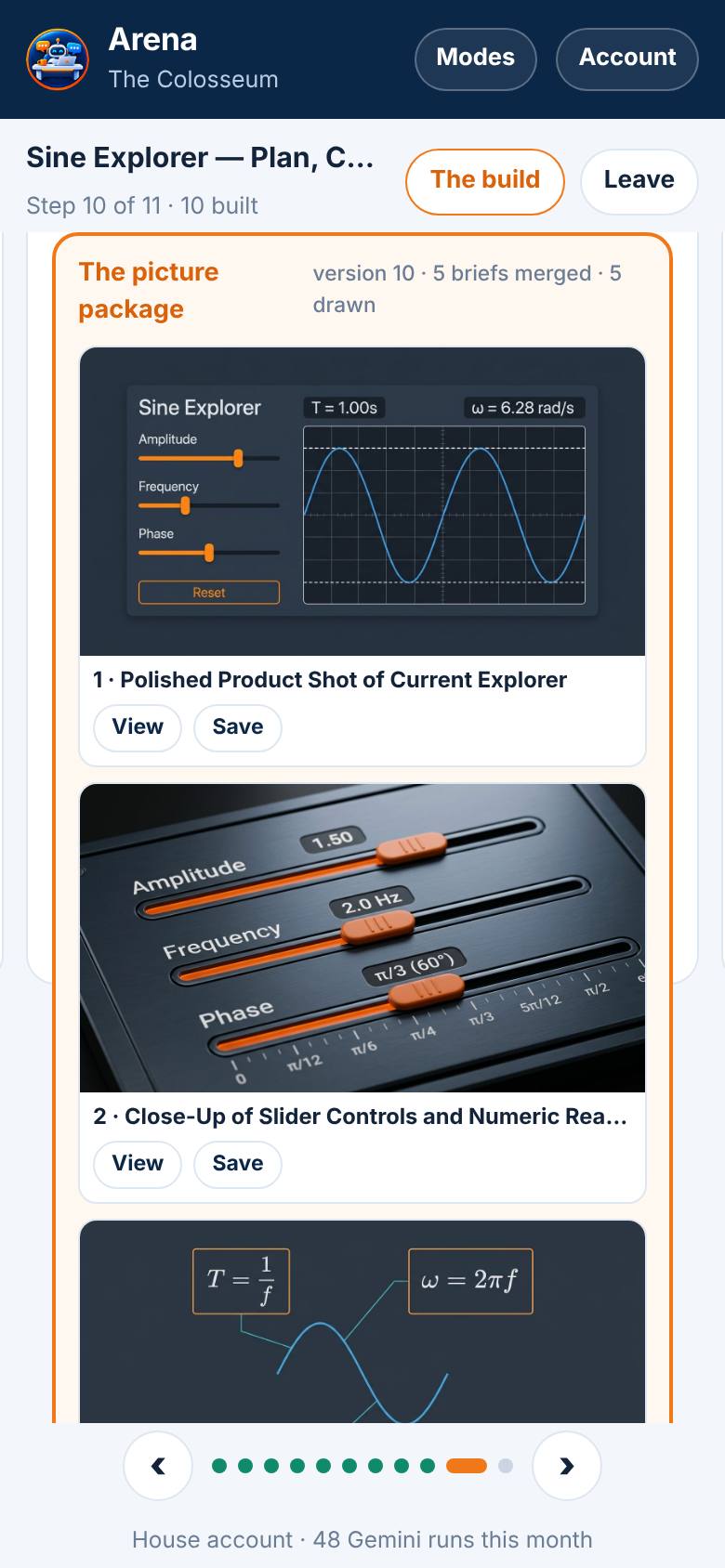
Tap Next step, tick Picture step (5 pictures), paste the picture prompt, tap OK, yes.
The seats write five picture briefs, the referee merges them, the house draws each brief. Version 10.
- 13
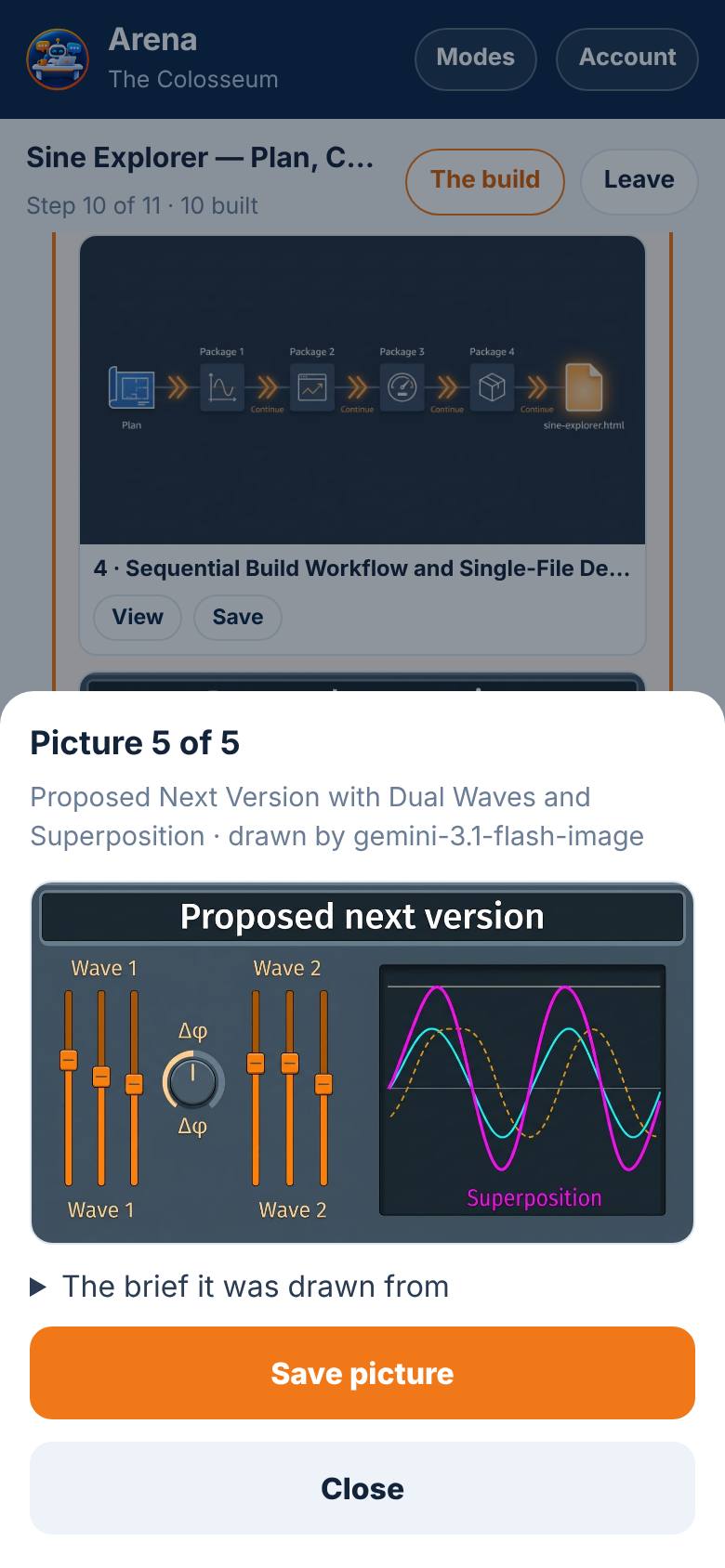
A picture, full size
Tap a picture.
The picture full size, the brief it was drawn from, and Save picture.
- 14
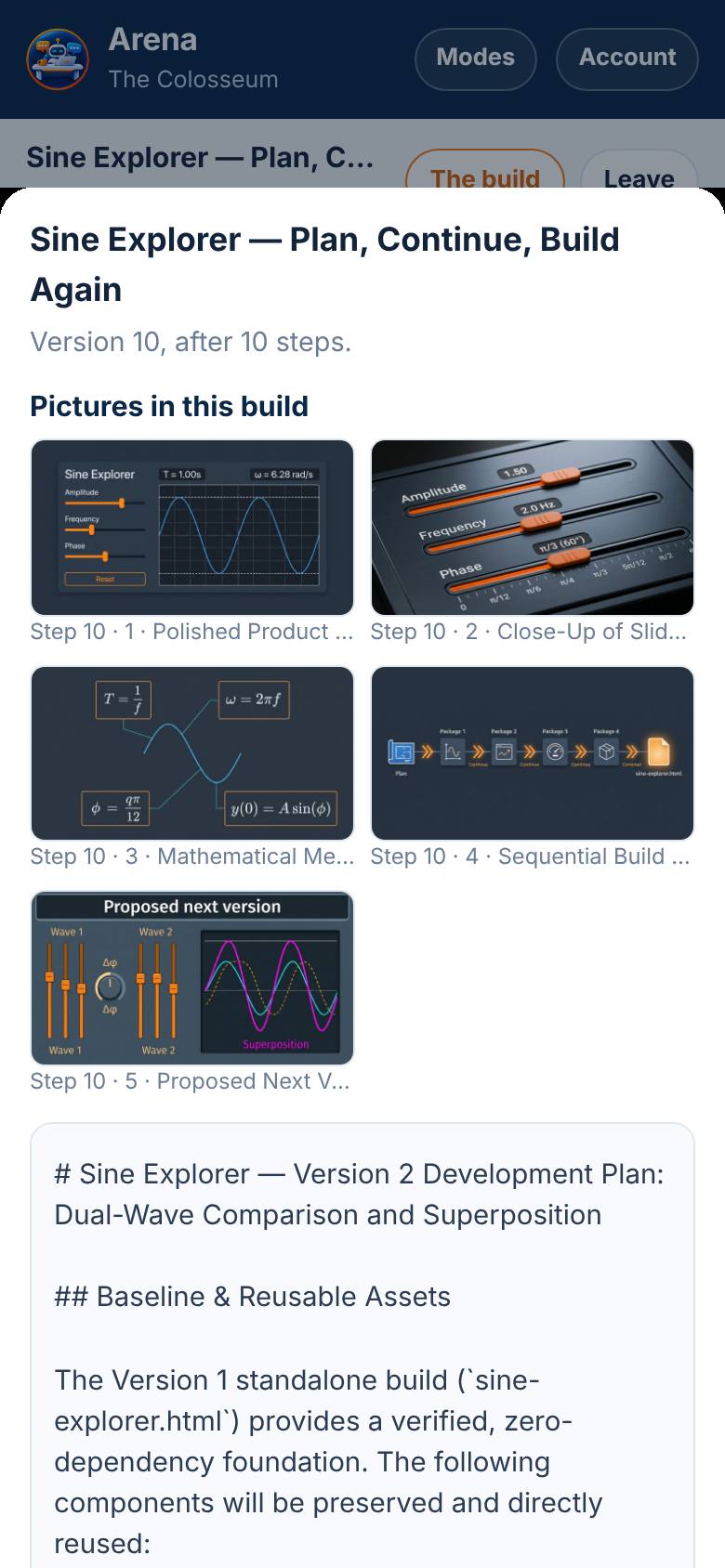
The build
Close it and tap The build.
Version 10: the next plan with the picture package, the five pictures, and the text to copy or download. The widget file stays in step 7, where it was built.
What result should I expect?
A named build with ten versions: the widget file in version 7, the summary in 8, the next plan in 9, and five pictures in 10.
How do I save, share or get help?
Every step is saved to your account. Leave and come back, and the arena resumes where it was. Pictures stay in the browser that drew them; a picture drawn elsewhere gets a Draw it button.
If something goes wrong
- I typed Continue and it did something else. The rule has to be set in an earlier step, as step 2 does here: 'Whenever my next message is exactly Continue, execute only the next pending package, carry all previous work forward and then stop.' Every later step reads the build so far, so the rule travels with it.
- Where did the file go after the summary step? Each version replaces the one before it, so a summary step's version is the summary. The file is still in step 7's card and its build sheet: open that card, or ask the summary step to keep the file.
- The picture step drew fewer than five. A picture that failed shows why, with a Draw it button. Credits run out: add some and tap Draw it.
Every screenshot here was taken while doing these exact steps on the current build (4b5952c), on a phone-sized screen, on 2026-10-12.
All AiArena How-To guides Open AiArena Colosseum